Projects

AI Explorer

A full-stack, interactive web application for visual, AI-driven query expansion.
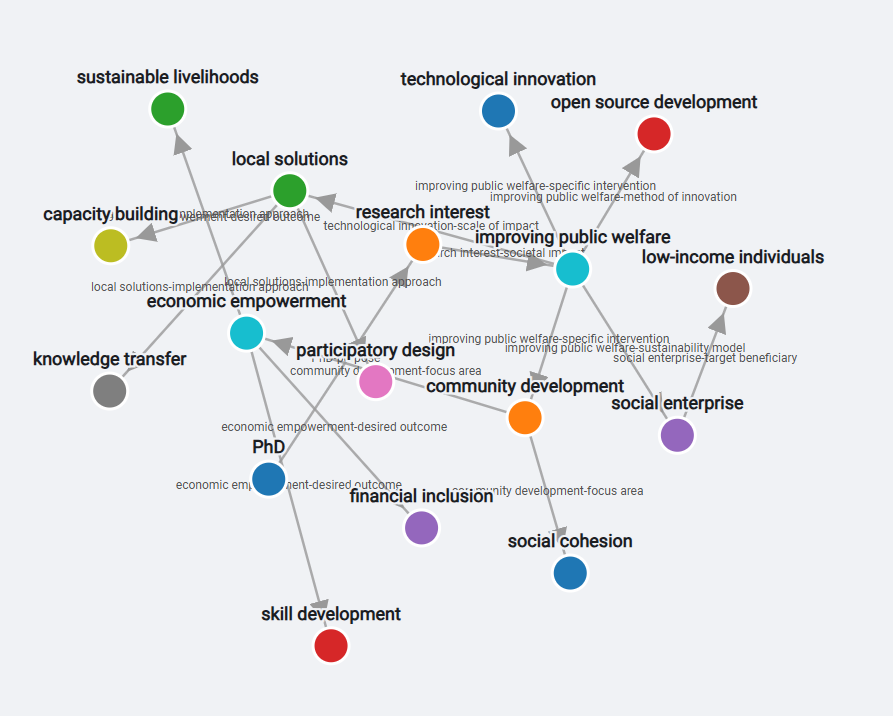
Screenshot of AI Explorer showing an interactive graph of interconnected topics.
Description

A full-stack, interactive web application for visually expanding upon the relationships associated with a given query. Users begin with a text query, expand the graph based on AI-driven suggestions, and use the inspiration of the results to generate a final, context-aware answer from the Gemini AI. The project features a clean separation of concerns with a Node.js/Express backend for AI prompt management and a D3.js frontend for all visualization and state management.

How to Use:

  1. Start by entering a topic in the search bar and clicking 'Generate'.
  2. Click on any node in the graph to get AI-powered suggestions for related terms.
  3. In 'selection mode', click the suggested nodes you want to add (they will be highlighted).
  4. Click the background to finalize your selection and add the new nodes to the graph.
  5. Right-click any node to remove it.
  6. Once your graph is ready, click 'Get Response' to generate a final, context-aware answer based on your work.

Tech Stack: Node.js, Express, D3.js, Gemini AI, JavaScript, HTML, CSS
AI Playpen

A real-time, conversational webpage editor powered by generative AI.

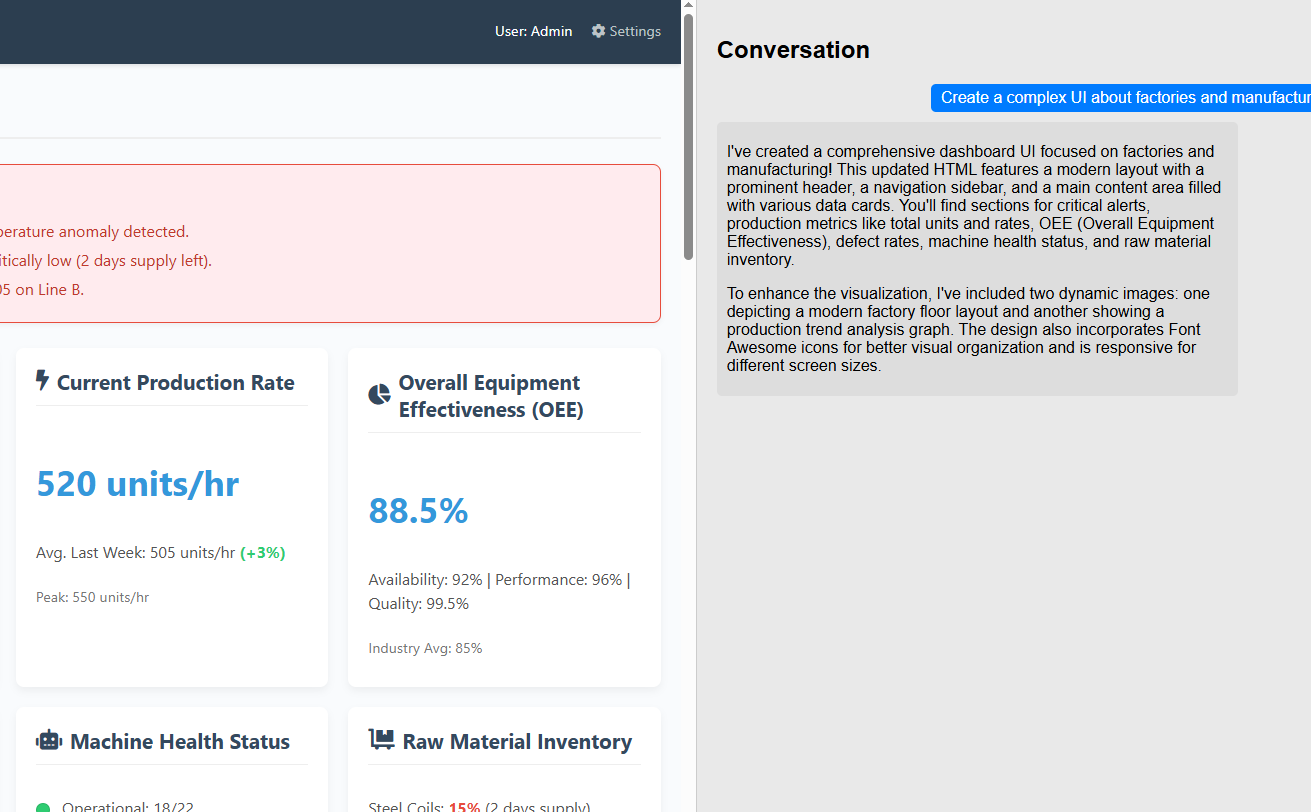
Screenshot of AI Playpen showing a live webpage being edited via a chat interface.
Description

An interactive web application where users can modify a webpage in real-time through a chat interface. The application takes user prompts, routes them to Google's generative AI models (for text and images), and then dynamically updates an iframe to reflect the requested changes. The backend is a Node.js/Express server that serves the static content and provides endpoints for AI generation.

How to Use:

  1. The screen is split into the 'Playpen' (the live webpage) on the left and the 'Conversation' on the right.
  2. Type a request to modify the webpage into the chat box at the bottom (e.g., 'Make the background red' or 'Add a button').
  3. Press 'Send' or hit Enter to submit your command.
  4. The AI will respond in the Conversation panel, and the playpen on the left will generate the request.
  5. You can continue the conversation to make iterative changes.

Tech Stack: Node.js, Express, Gemini AI, JavaScript, HTML, CSS